How to pay

1
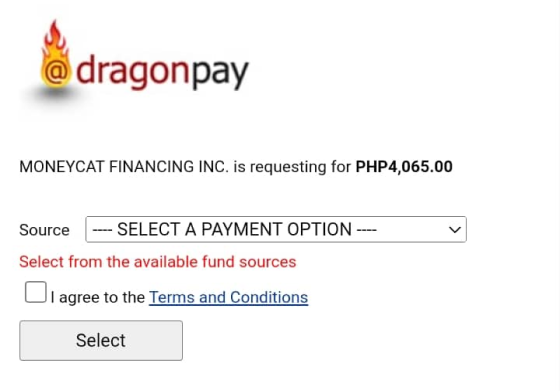
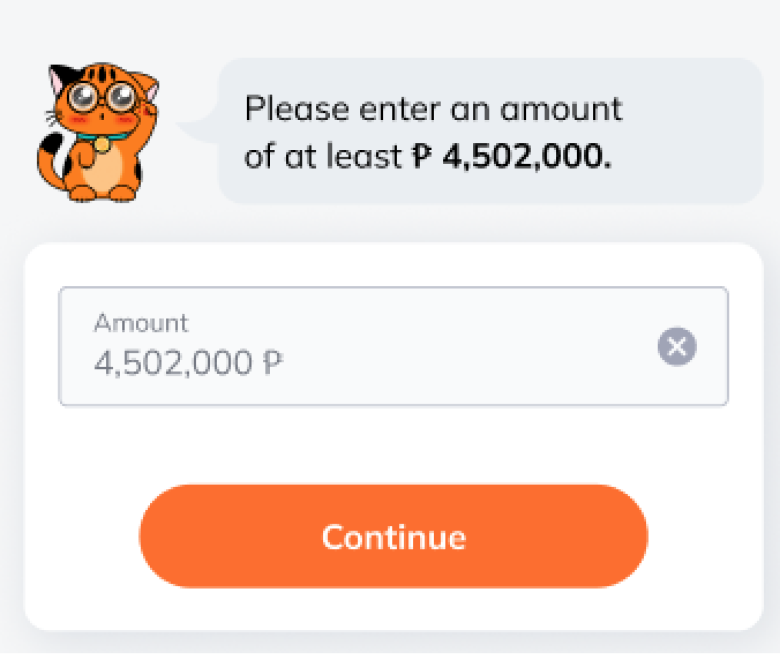
Go to the payment section in your MoneyCat personal cabinet. Select the payment amount. Then you will be redirected to DragonPay
image
2
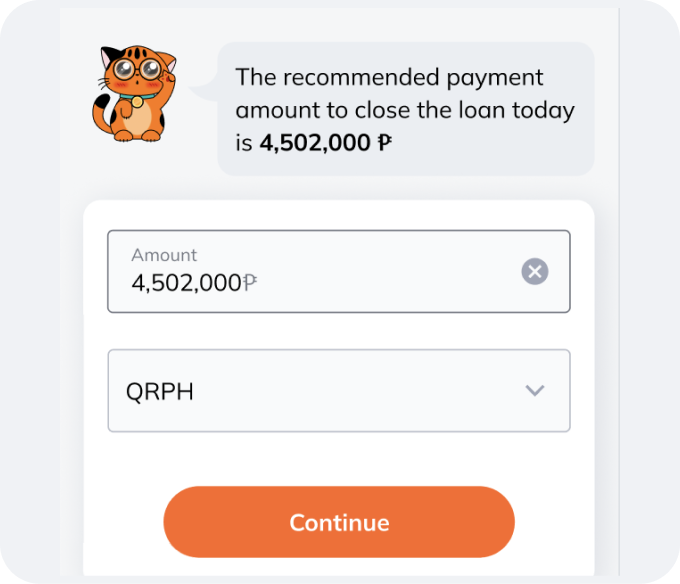
You will be taken to the payment page. Enter the amount you need to pay. QRPH is selected by default.
Click Continue.
image
3
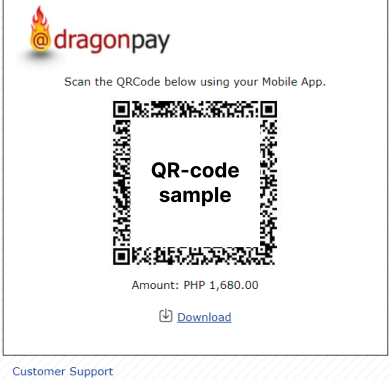
Scan or save the generated QR code. Open Gcash/PayMaya/Other Mobile Bank app where you can pay via QR code. Load a saved code or scan from another device's screen. Make a payment.
image
Choose your payment method for your cash loan online:

GCash

ShopeePay

PayMaya

Coins.ph
1
Log in to Gcash. Click Pay Bills
image
2
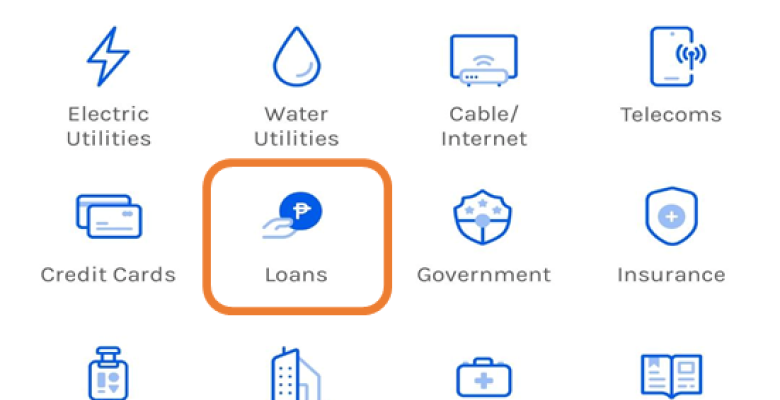
Click "Loans"
image
3
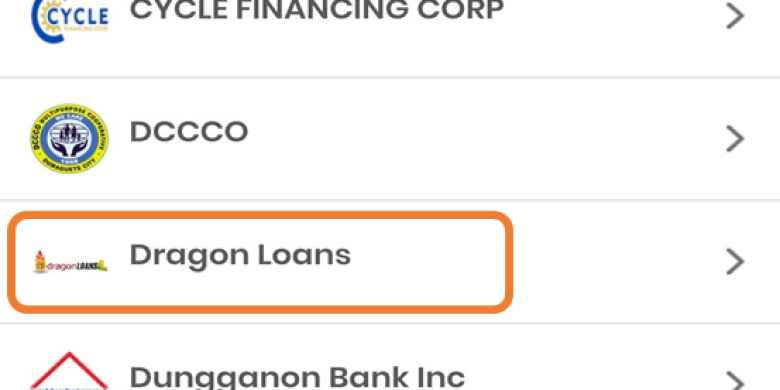
Choose "Dragon Loans"
image
4
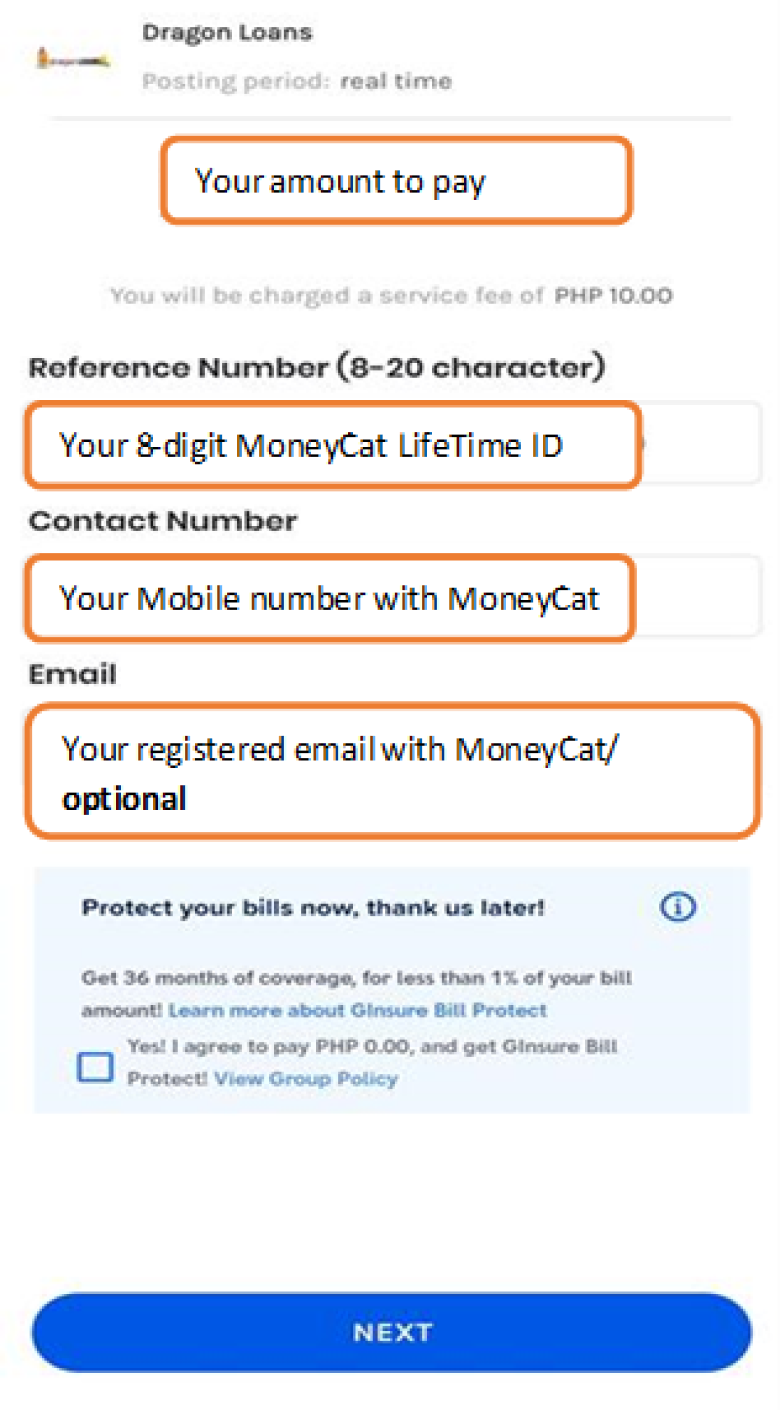
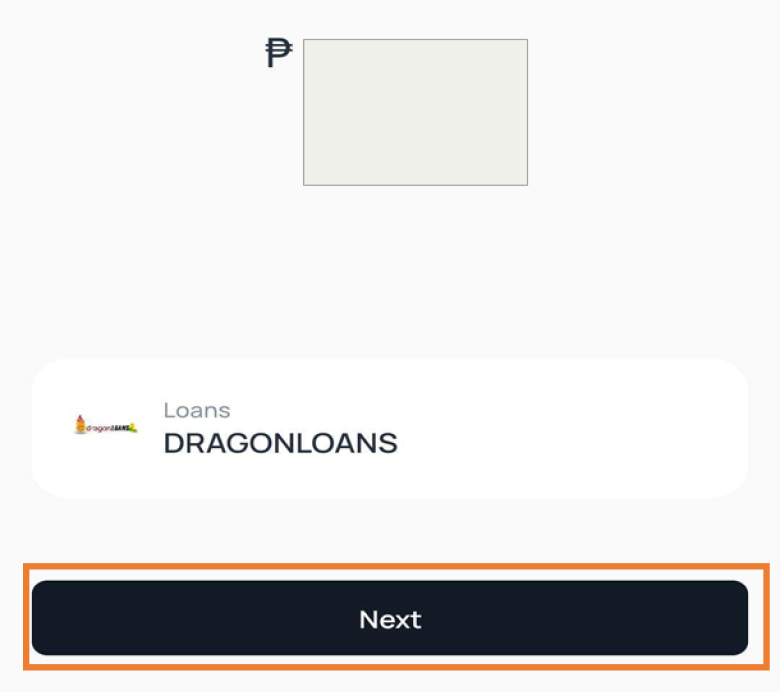
Fill out the following payment details:
  • Reference Number – Your 8-digit MoneyCat LifeTime ID no.
  • Contact Number - Your Mobile number with MoneyCat
  • Amount – payment amount
Then Click NEXT
image
5
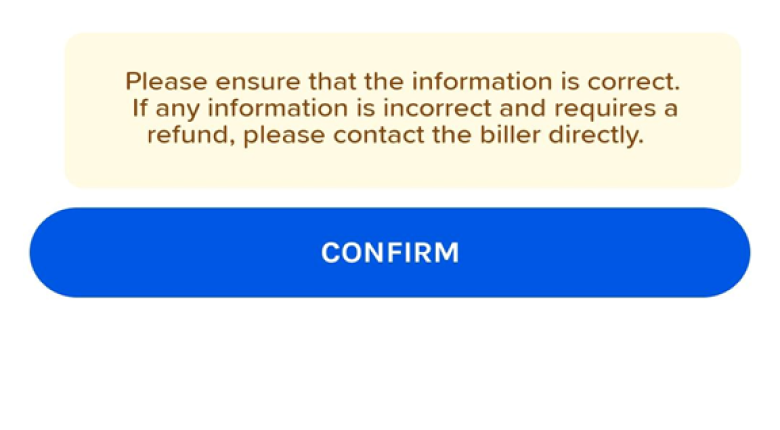
Double check the amount and lifetime ID. Click “Confirm” if information is correct to proceed processing your payment
image
1
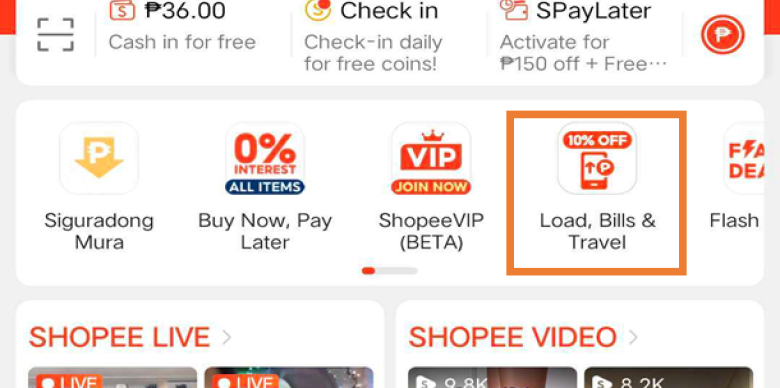
Login to your Shopee Account. Click on Load, Bills & Travel
image
2
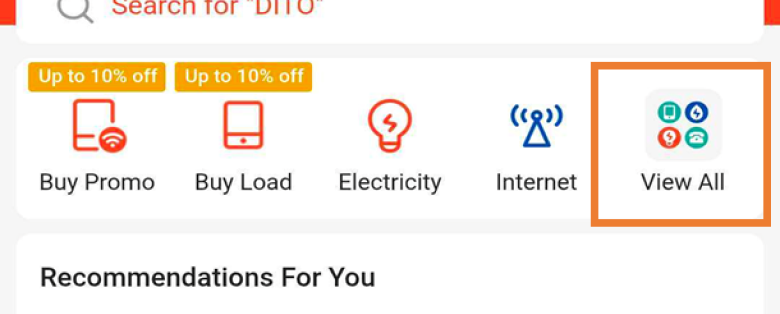
Click VIEW ALL
image
3
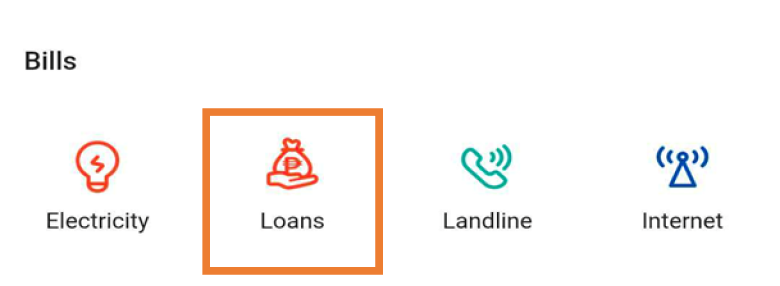
Click Loans
image
4
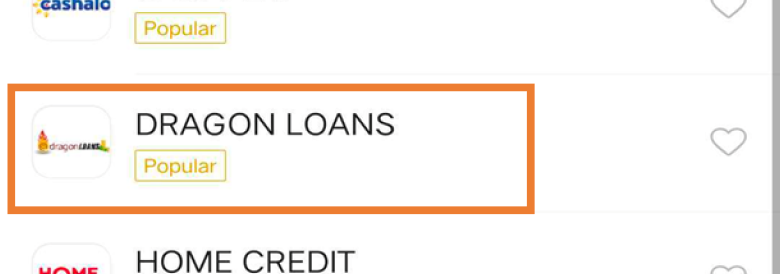
Choose "Dragon Loans"
image
5
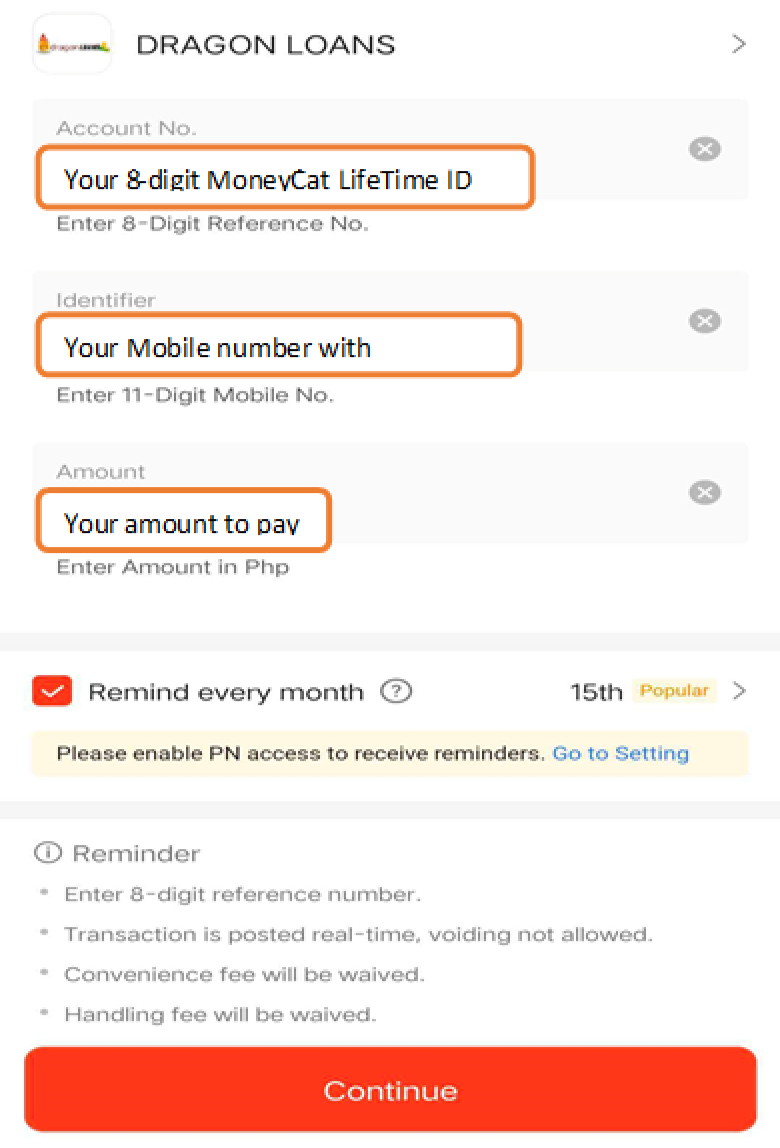
Fill out the following payment details:
  • Account No. - Your 8-MoneyCat Lifetime I.D.
  • Identifier – Your Registered Mobile number with MoneyCat
  • Amount – payment amount

Double check the amount and lifetime ID. Click “Continue” if information is correct to proceed processing your payment
image
1
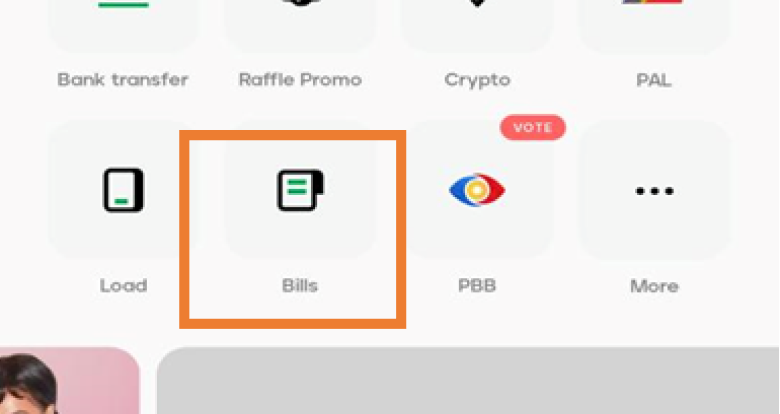
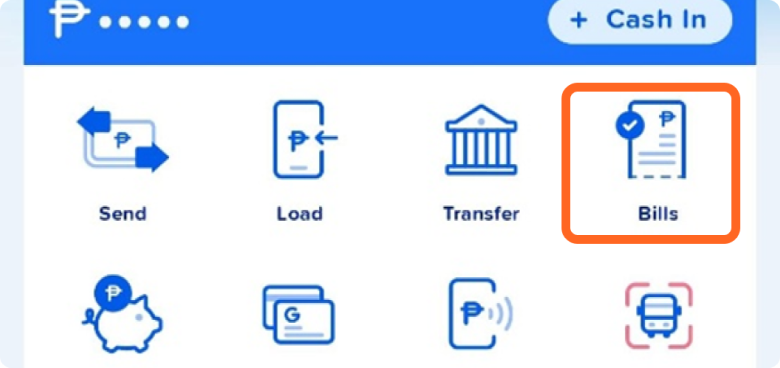
Log in to your PayMaya account. Click button “Bills”
image
2
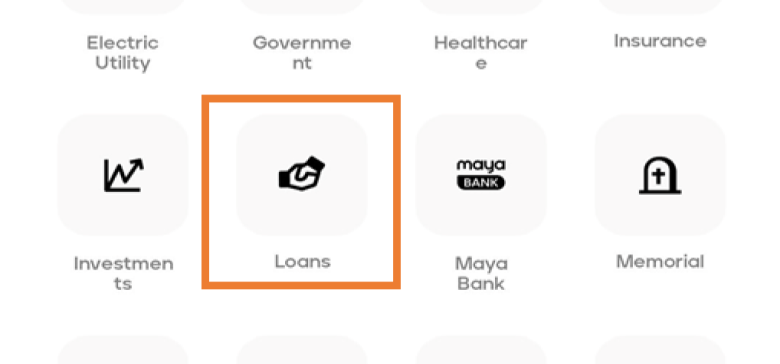
Click "Loans"
image
3
Select "Dragon Loans"
image
4
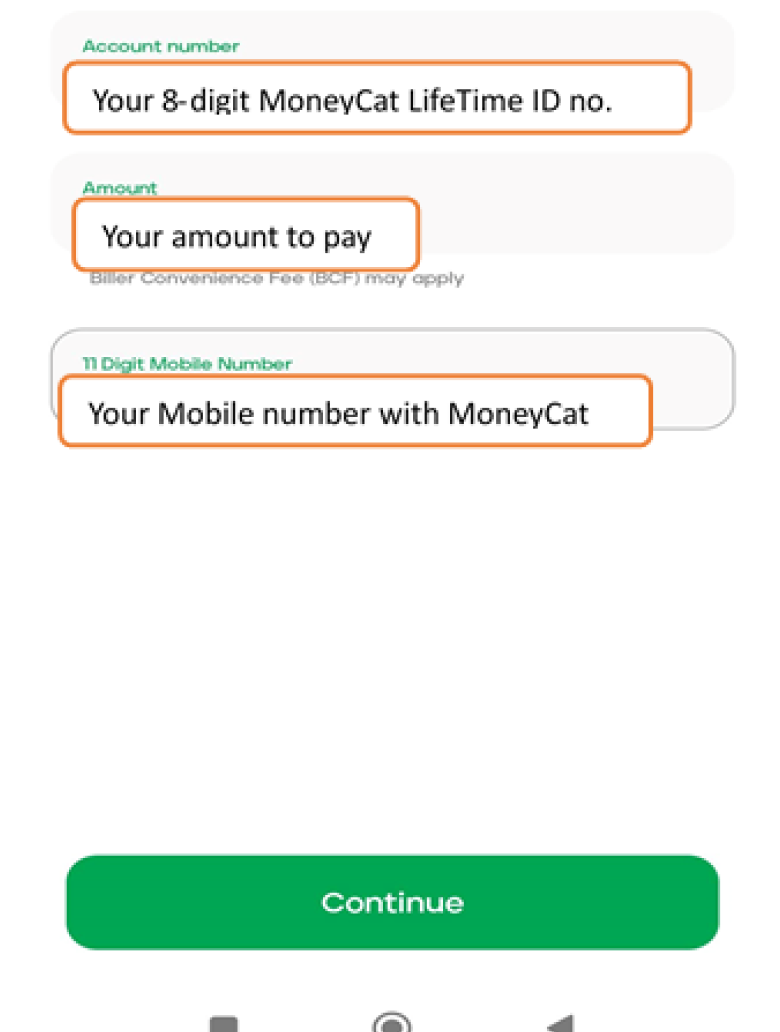
Fill out the following payment details
  • Account Number – Your 8-MoneyCat Lifetime I.D.
  • Amount – Amount to pay
  • 11-digit Mobile Number – Your Registered Mobile number with MoneyCat
Then Click Continue

Double check the amount and lifetime ID. Click “Pay” if information is correct to proceed processing your payment
image
1
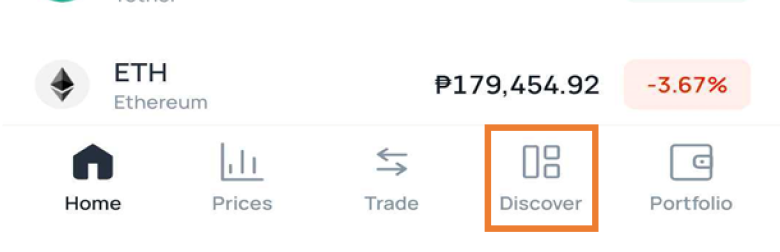
Log in to your Coins.ph account. Click Discover.

image
2
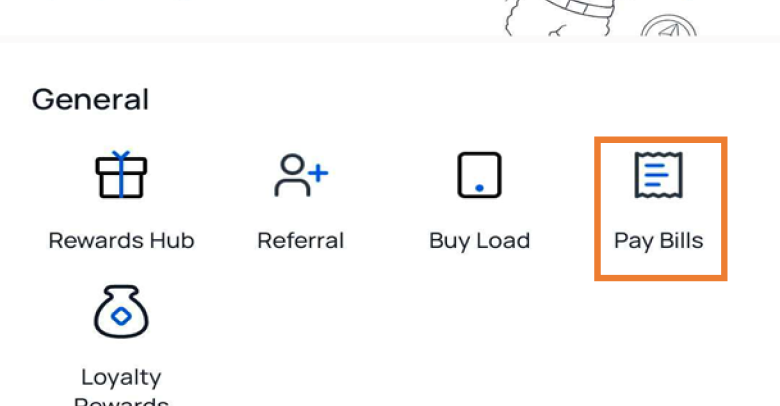
Click on Pay Bills
image
3
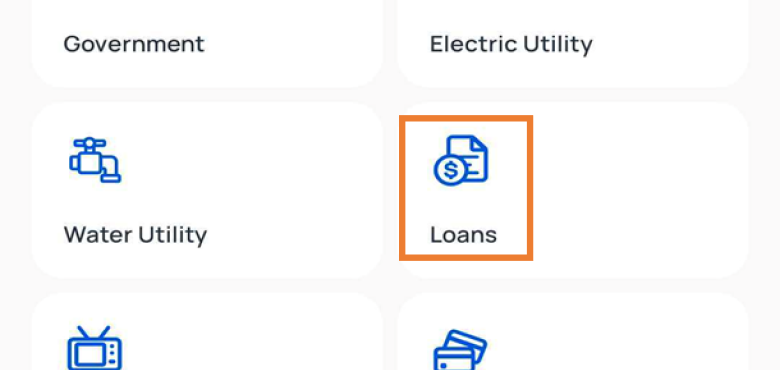
Click Loans
image
4
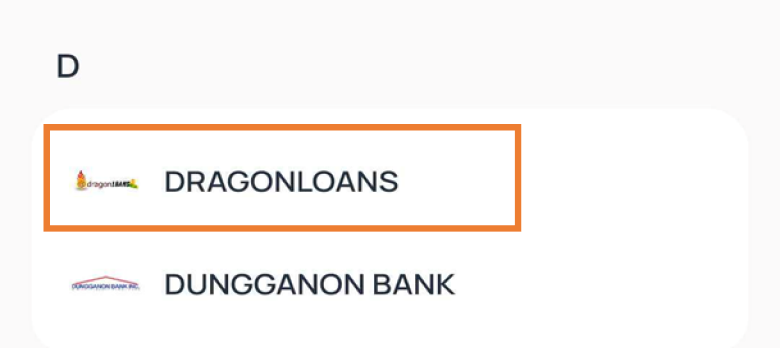
Click DRAGONLOANS
image
5
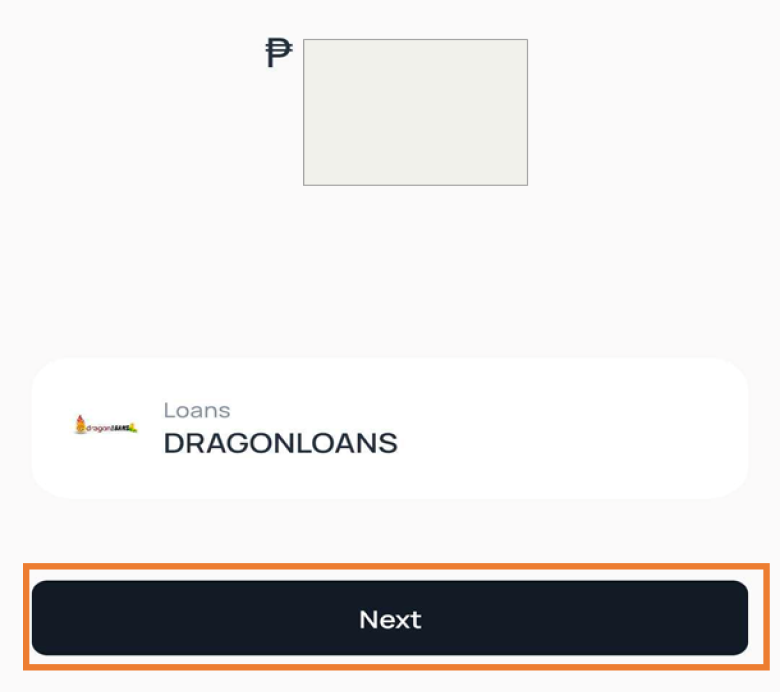
Fill out your amount to pay then click Next.
image
6
Fill out the following payment details:
  • Reference Number – Your 8-digit MoneyCat LifeTime ID no.
  • Contact Number - Your Mobile number with MoneyCat.

Click Next
image
7
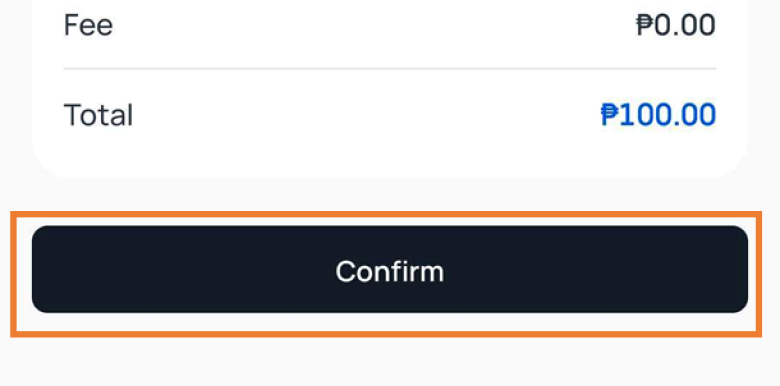
Double check the Mobile number, lifetime ID and amount to pay. Click “Confirm” if information is correct to proceed processing your payment.
image
Follow the instructions below to repay your loan using online banking and other options:
1. Log in to your account using your mobile app or our website
2. Click Pay
3. Select which payment option you prefer.
4. Follow the Instructions or next step according to the selected payment channel.
image
logo
Landbank
logo
BDO
logo
BPI
logo
Metrobank
logo
Maybank
logo
PSBank
logo
RCBC Online Bank
logo
Robinsons Bank
logo
Unionbank
logo
UCPB
Choose your payment method for your cash loan online:
7-eleven

7-Eleven

Bayad Cener

Bayad Cener

Cebuana Lhuillier

Cebuana Lhuillier

SM Department Storer

SM Department Store

Palawan Express Pawnshop

Palawan Express Pawnshop

Business Center

Business Center

RD Pawnshop and Jewelery
RD Pawnshop and Jewelery
Use the Cliqq touch screen machine:
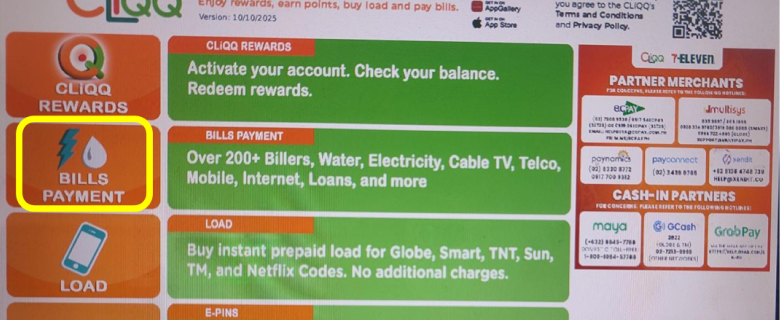
1. Go to Bills Payment > More Bills > Loans > DRAGONLOANS
2. Fill out the necessary details. Put your Reference Number (it is indicated on the SMS that you have received upon your approval).
3. Get a machine-generated receipt and pay it at the counter.
4. You will receive a payment receipt from the cashier. Keep the receipt for your reference.
IMPORTANT: Remember to select DRAGONLOANS
1
Click BILLS PAYMENT
image
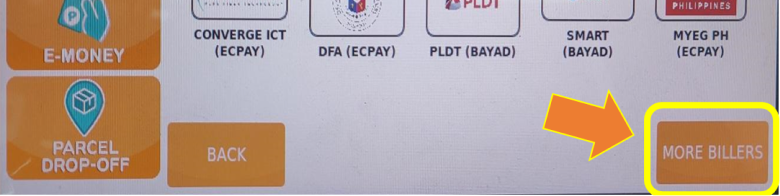
2
Click MORE BILLERS
image
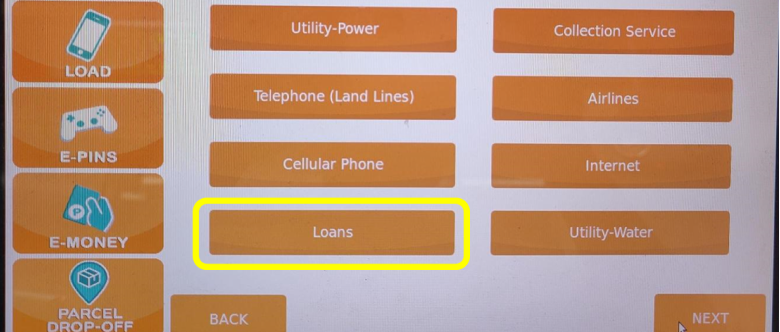
3
Click Loans
image
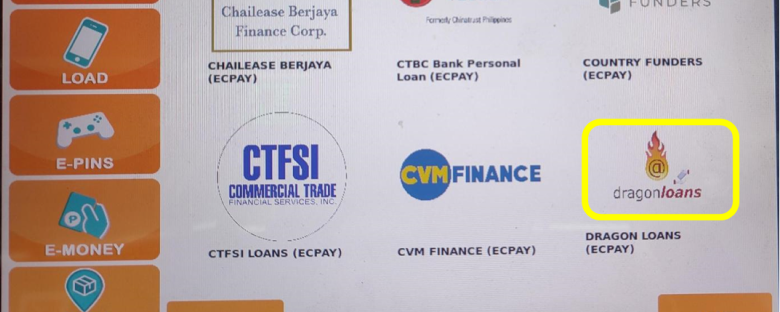
4
Choose DRAGON LOANS
image
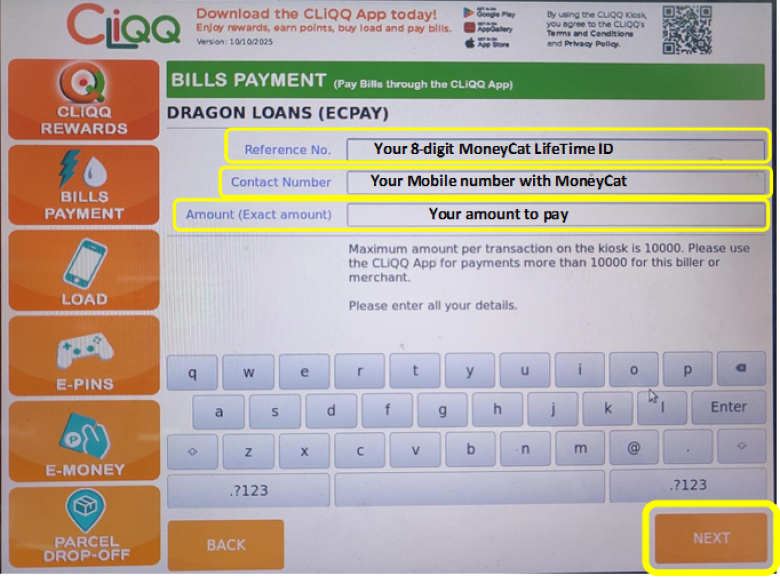
5
Fill out the following payment details:
  • Reference Number – Your 8-digit MoneyCat LifeTime ID no.
  • Contact Number - Your Mobile number with MoneyCat
  • Amount – payment amount

Then Click NEXT
image
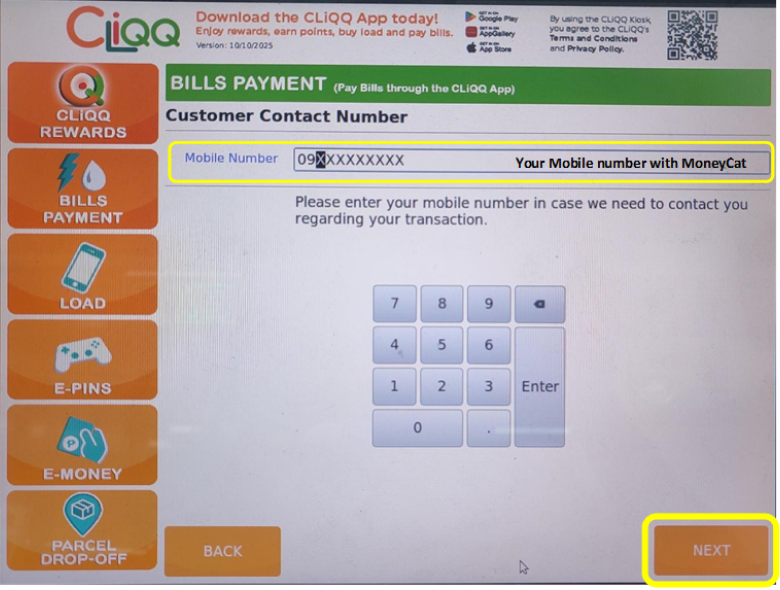
6
Enter your active mobile number again for confirmation.
Then Click NEXT
image
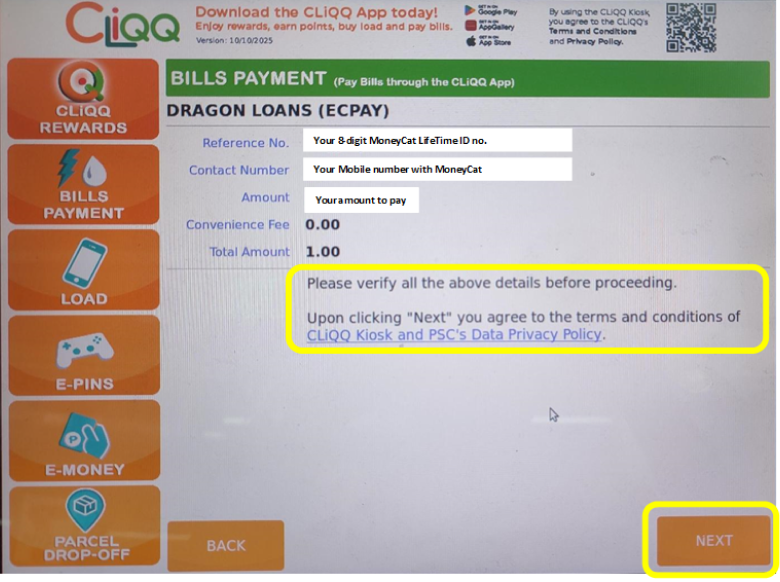
7
A summary of your payment will appear, double check every detail to avoid any inconveniences.

Click NEXT if information is correct to proceed processing your payment.
image
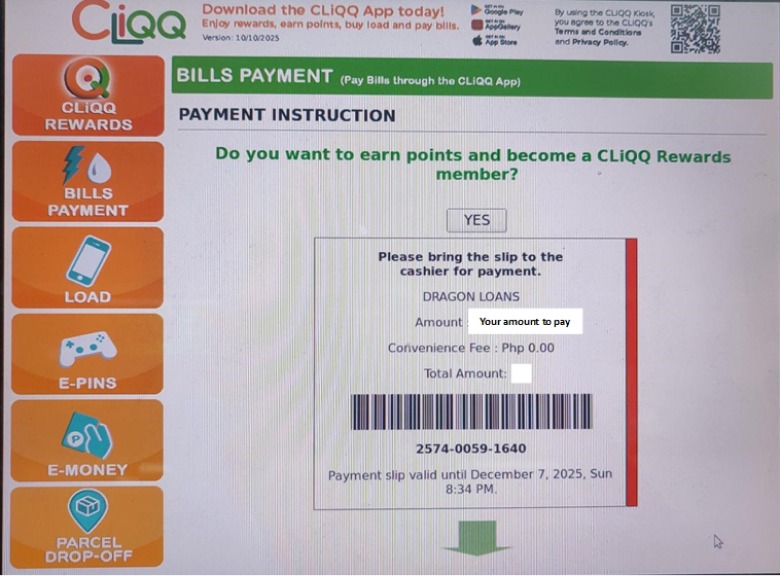
8
A print-out summary of your payment will appear, double check every details to avoid any inconveniences.
image
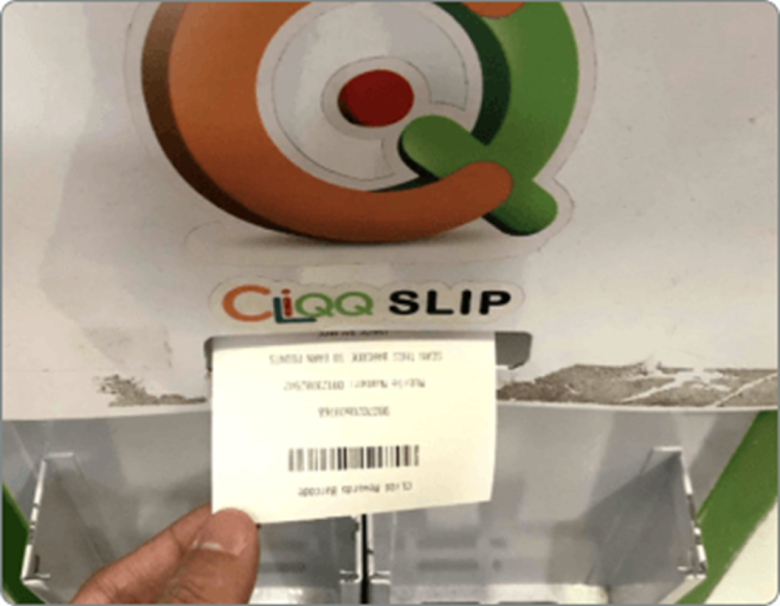
9
Get your payment print-out and proceed to the cashier for the payment.

Note: Barcode is only valid for 24 hours
image
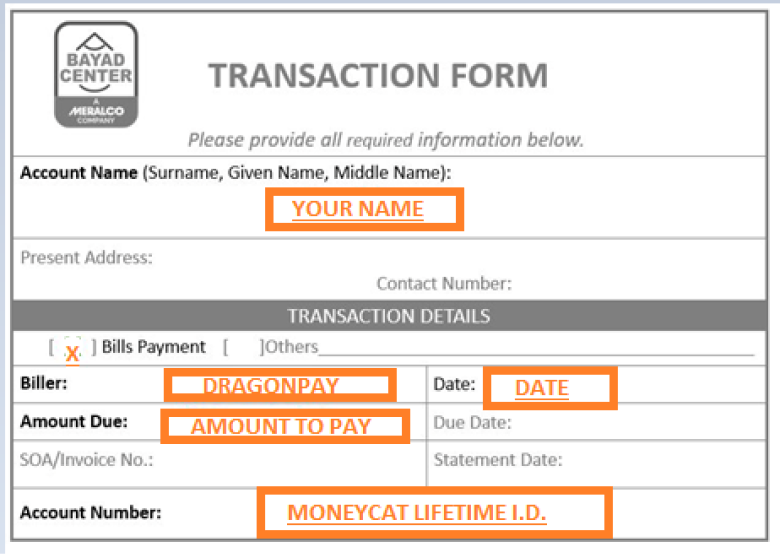
1
Tell the staff that you will be making a Bills Payment (not a remittance) to DRAGONPAY.
You will receive a Transaction Form Slip. Fill it in the following way:
image
2
Make sure to put Dragonpay as the name of the Biller. Please remember to enter your MoneyCat Lifetime I.D. correctly in the "Account Number" field. A wrong reference number can cause your transaction to remain invalidated.
3
Hand over your slip and cash (no checks please) to the cashier. Keep the receipt for your reference.
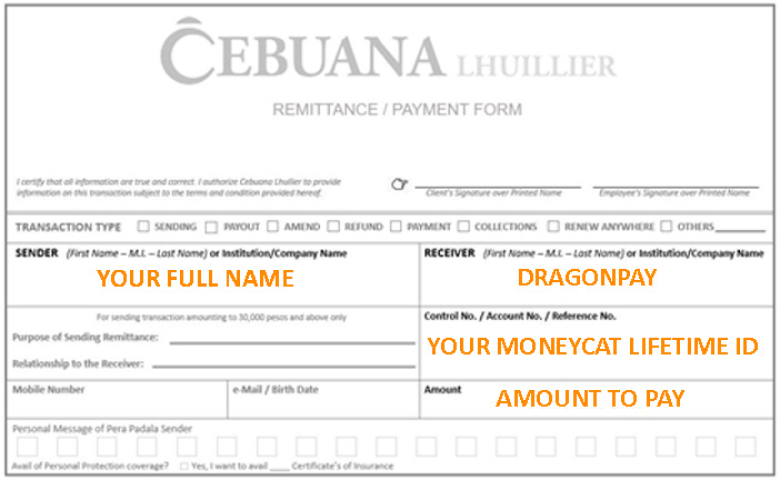
1
Tell the staff that you will be making a Bills Payment (not a remittance) to DRAGONPAY.
You will receive a Transaction Form Slip. Fill it in the following way:
image
2
Make sure to put Dragonpay as the name of the receiver. Please remember to enter your MoneyCat Lifetime I.D./Reference # correctly in the Control No./Account No./Reference No. field. A wrong reference number can cause your transaction to remain invalidated.
3
Hand over your slip and cash (no checks please) to the cashier. Keep the receipt for your reference.
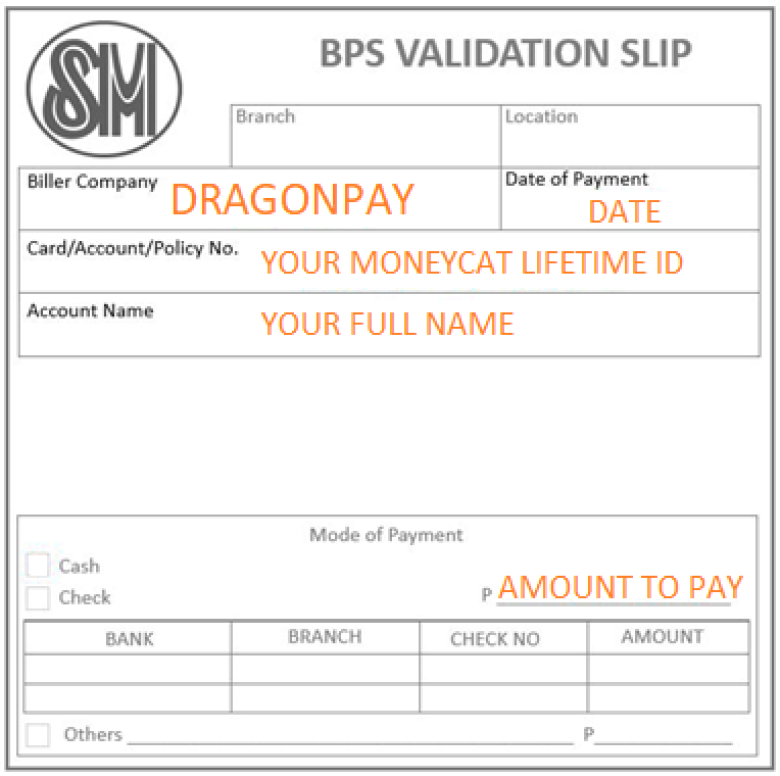
1
Go to the SM Bills Payment Center located at SM Department Store/SM Supermarket/ SM Hypermarket/Save More branches. Tell the staff that you will be making a Bills Payment (not a remittance) to DRAGONPAY.
You will receive a BPS Validation Slip. Fill it in the following way:
image
2
Make sure to put Dragonpay in the "Biller company" field. Please remember to enter your Moneycat Lifetime I.D. correctly in the "Card/Account" field. A wrong reference number can cause your transaction to remain invalidated.
3
Hand over your slip and cash (no checks please) to the cashier. Keep the receipt for your reference.
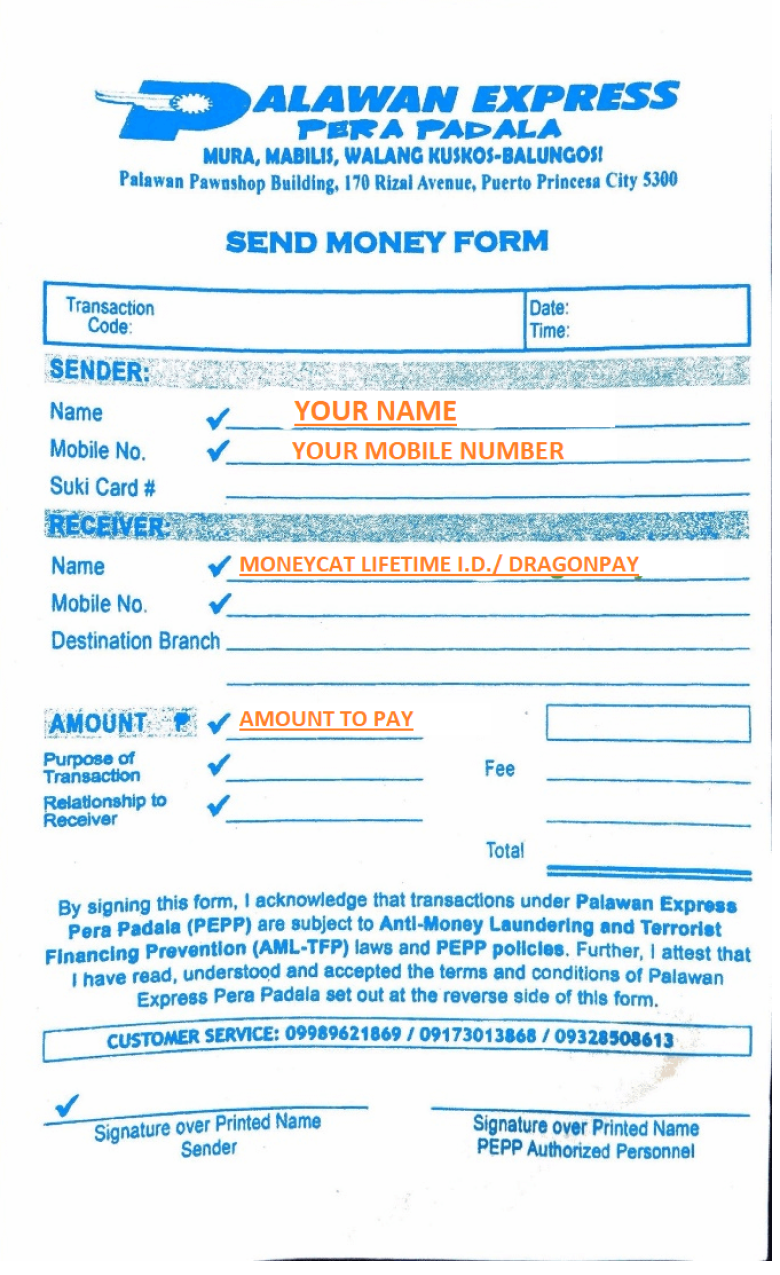
1
Tell the staff that you will be making a Bills Payment (not a remittance) to DRAGONPAY.
You will receive a Send Money Form. Fill it in the following way:
image
2
Make sure to put Dragonpay and your Reference number as the name of the receiver. Please remember to enter your MoneyCat Lifetime I.D. correctly in the "Receiver’s Name" field. A wrong reference number can cause your transaction to remain invalidated.
3
Hand over your slip and cash (no checks please) to the cashier. Keep the receipt for your reference.
1
Tell the staff that you will be making a Bills Payment (not a remittance) to DRAGONPAY.
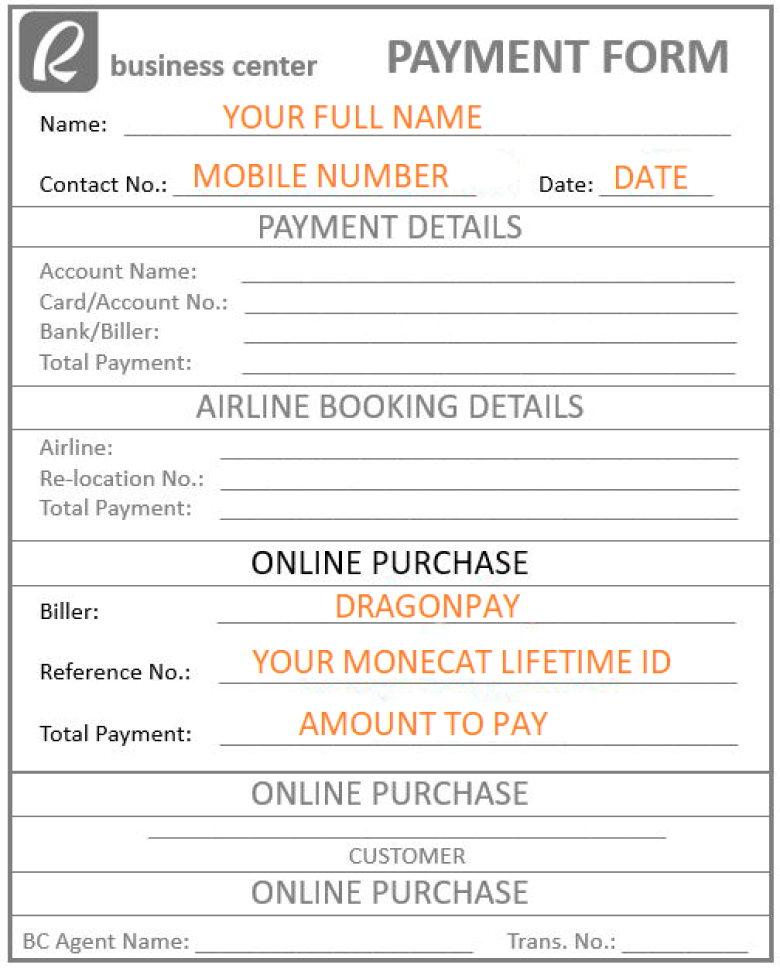
You will receive a Payment Form. Fill it in the following way:
image
2
Make sure to put Dragonpay as the name of the Biller. Please remember to enter your MoneyCat Lifetime I.D./Reference # correctly in the "Control No./Account No./Reference No." field. A wrong reference number can cause your transaction to remain invalidated.
3
Hand over your slip and cash (no checks please) to the cashier. Keep the receipt for your reference.
1
Go to any RD Pawnshop branch.
2
Fill up the bill’s payment form. Use DragonPay as the Biller and put your Reference Number (Your Moneycat Lifetime I.D.).
3
Make a payment and receive the confirmation. Keep the receipt for your reference.
cat
LOADING...